Business Strategy Guide: How to Build a Long-Term Competitive Advantage
Looking for a way to dominate the market? Read our comprehensive strategy guide. From setting goals and segmentation to management systems. Build a business, not a coincidence.
Editor's note: This article was written for the Czech market. Sklik is the ad platform of Seznam.cz (the Czech search engine) and Heureka and Zboží.cz are Czech comparison shopping engines – the same principles apply to Microsoft Ads, Google Shopping, Idealo or Ceneo in other European markets.
Online stores keep repeating the same mistakes that cost them orders. Is this the case for you too?
I have compiled the most common mistakes, resulting in 25 practical tips for skyrocketing your online store's growth. You can implement most of them yourself and quickly. And you will notice the difference in your revenue.
If you get stuck, just let me know.
I have divided the tips into 3 sections: the first covers Google Analytics, the second Google Ads, and the third contains general tips.
Track what customers are searching for directly on your online store. This will give you ideas for products that are in demand.
For example, if you have a lot of searches for "soccer ball" on your online store but you don't sell them, consider stocking them. That is, if they fit your product range.
Where can you find on-site search data?

The string parameter uses Shoptet. If you are using Eshop-rychle, use the “q=” parameter instead of “string”.
You can find your online store's search queries here:
Purchase-related data is among the most important, as sales are the primary goal of an online store. Activating this feature gives you new options for filtering shopper behavior and products sold. You will see:

How do I enable e-commerce?
If you are using an off-the-shelf solution, you only need to enable it in Google Analytics. Otherwise, you also need to enrich your conversion code. For gtag.js, the English guide is here.
Do you see Heureka and its subdomains listed on multiple lines in your traffic sources? I recommend adding a filter to combine them into one.
How do I set up a filter?
Configure as shown in the screenshot:

In campaign source enter: ^.+\.heureka\.cz$
Even if you have the Google Ads remarketing tag installed on your online store, enable this option to create audiences directly in Google Analytics. You will gain more precise targeting options.

Where to enable data collection?
You can use scripts to automatically send costs from Sklik, Facebook, Heureka, Zboží, Favi, Glami, Biano, and others to Google Analytics. This process is more complex. The script for Sklik and Facebook is free; others cost €40. You can find the script and instructions here.
You will see how individual channels are performing immediately, without having to open the advertising system or wait for a report.
How to set up a calculated metric?

To view the ROAS metric, create a "Custom Report" by following the tip below.
Once you have created the ROAS metric and imported your costs into Google Analytics, you need to create a Custom Report. You can configure it according to your goals and preferences. This will give you a single table with all your channels and your most important metrics. Mine looks like this:

Where to set up a Custom Report?
Facebook and Glami use their own tracking parameters. In Google Analytics (Behavior -> Site Content) this causes a single URL (i.e., one product) to be split into several rows. See the screenshot below. As a result, the data ends up needlessly split and hard to read.

Where to exclude these parameters?

Note: After you set this up, historical data will not be updated retroactively.
Google has expanded shopping search results with free listings in Google Shopping — essentially organic search within Google Shopping. Show your products to potential customers for free.
How to activate them?
According to Google support, you'll only be able to check whether you're showing up in the fall, once enough data has been collected. Once that happens, a new Merchant Center -> Overview chart called Performance (free listings) will appear.
Without a conversion code, you're advertising blind. You don't know which products generate profit and which are just burning through your budget. That's why measuring conversion value is a priority.
If you're using an off-the-shelf platform, there are guides you can find in the help center or blog of that online store platform. It's nothing complicated.
If you have a custom-built online store, contact your web developer right away and hold off on launching ads for now.
If you're already measuring conversions in Google Analytics, nothing is easier than linking it to Google Ads and importing the conversion code from there. If you need help, reach out.
How does Google Analytics know that a conversion came from this campaign, ad group, keyword, or ad? Through UTM parameters added to the URL. You don't need to know exactly what a UTM parameter is, but make sure this option is switched on. Otherwise, measuring campaign performance is practically impossible.

How to enable auto-tagging in Google Ads?
How to enable auto-tagging in Microsoft Ads?
Linking them enriches both systems with useful metrics. In Google Analytics you'll see things like campaigns and search queries. Google Ads will receive:
How to link them?

It's possible that a previous manager accidentally excluded something you actually stock. Or maybe you've added new products that aren't showing up because of negative keywords.
For example, say you manage an online store selling running shoes. You check your search terms and see you're also showing up for "house shoes." So you exclude the word "house." Some time later you decide to add house shoes to your footwear range too. And there's the problem: for the search term "house," your ads won't show at all.
Where can you check your negative keywords?
If a freelancer, agency, or employee who no longer works with you used to manage your PPC campaigns, it's worth checking whether they set up any automated rules.
You could make a change, only to have a rule silently revert it back to its original value without you knowing.
It takes at most a minute and can save you a lot of headaches.
Where can you find automated rules?
Display ads often show up inside mobile apps. These, however, rarely deliver the performance you want. That's why excluding them is common practice.
How to exclude mobile apps?
If you optimize Google Ads yourself, make it easier on yourself by adding the PNO metric.
How to add the PNO metric?

This type of campaign relies on neural networks and machine learning. But if you "train" it on bad data (parameters), it won't perform at 100%.
Make sure you're sending the correct parameters for Smart Shopping campaigns, including dynamic remarketing. You can check this using the Google Chrome extension Tag Assistant.
How to check that you're sending the correct parameters?
Then click through your online store and watch whether, for these parameters,
the values on the right-hand side change and match the data you're actually looking at.

If you're using an off-the-shelf platform like Shoptet, you don't need to worry about this tip. Just make sure the remarketing code is added in your admin panel.
Where to check the remarketing code?
According to Invesp research, 90% of customers prefer reading online reviews before visiting a store or using a service. 88% of people said they trust online reviews as much as personal recommendations.
Customer references and reviews often influence buyers more than perfectly written product descriptions. Make sure you're actively collecting and sharing them.

Your bestsellers, your highest-margin items, but also the products you want to clear out of your warehouse. All of these belong on your online store's homepage.
How to add products to the homepage?
When a customer has to wait too long for your online store to load, they lose patience. So they leave without buying anything.

Source: www.section.io
Run a test and find out what you or your web developer need to work on.
E-commerce is a highly competitive environment. That's why you should follow the Facebook groups for your online store platform.
It's even more important to keep an eye on the biggest Czech online stores, which have the resources and data to test what works and what doesn't.
Get inspired, but don't copy. These big online stores may have different goals and a different target audience.
If you add tags in advance, when evaluating your ads you'll be able to trace which Facebook campaign and ad set a user came from.
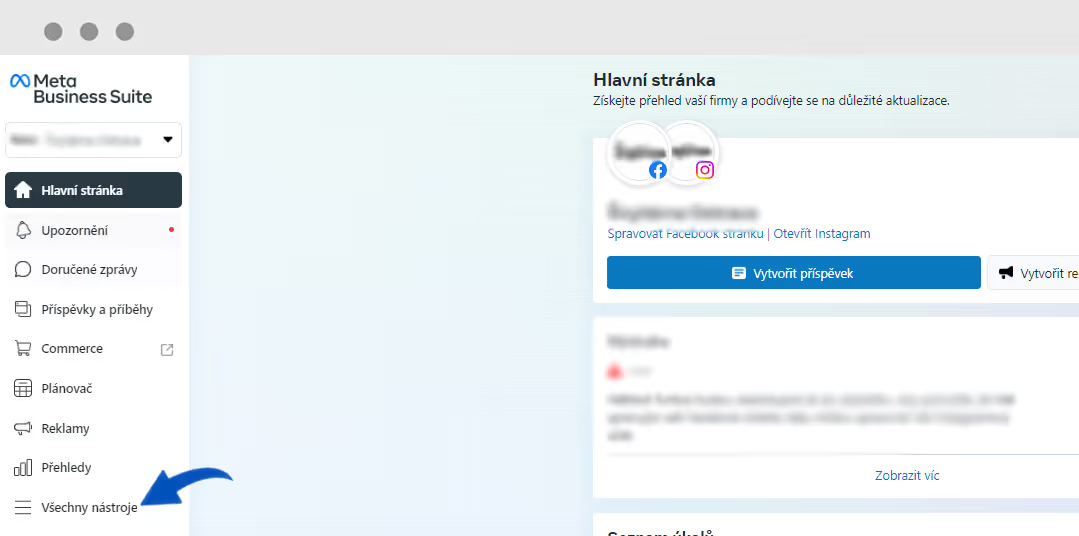
How to add tags in Facebook?
Also check the size. Does your logo fill the entire space allotted to it?
Where to check logos on Heureka?
Where can I check logos in Microsoft Ads and Google Shopping?
Where can I check logos in Google Merchant Center?
Machine learning and neural networks are becoming dramatically more important. Google and Facebook advertising systems rely on them. For these technologies to work as effectively as possible, they need accurate data and as much of it as possible.
Therefore, install tracking codes even for systems you aren't using yet but plan to use in the future.
What not to miss:
Glami offers a free mode that allows you to advertise without needing to top up credit. Don't expect miracles, but at least you will see if there is demand for your fashion products. If so, I recommend testing the priority (paid) mode as well.
In 2019, e-commerce grew by 15%, and this year the trend is even more pronounced. Even so, theshare of e-commerce in total retail turnover is only 13%" (APEK.cz).
I believe the tips above will help you grab a slice of the pie for your online store.
Get in touch if you need help with anything from this article. I’d be happy to help you find a solution.

Looking for a way to dominate the market? Read our comprehensive strategy guide. From setting goals and segmentation to management systems. Build a business, not a coincidence.
Facebook Business Manager is essential when you want to start running Facebook ads, and here we will show you how to set it up.

An interview about performance advertising and current trends.
Practical performance marketing insights, case studies and Google Ads news – straight to your inbox